Message Conversations
Overview
Message conversations let you communicate with people via SMS or WhatsApp directly through Smap. This is useful for:
Customer support - Respond to inquiries via text message
Case management - Track ongoing conversations with clients
Information gathering - Collect data through text exchanges
All messages are organized into "cases". Think of a case as containing a conversation thread with one person on one subject, similar to a text message thread on your phone. This keeps all messages from the same person related to a subject grouped together so you can see the full conversation history.
Note
Before you begin: The setup steps below require server owner permissions. If you're not the server owner, ask your administrator to complete the setup first. Regular users can skip to the Replying to Messages section.
Prerequisites
To use message conversations, you'll need:
An SMS or WhatsApp number from a cloud provider (such as Vonage), or a WhatsApp number connected directly to Meta
Server owner access to connect the number to Smap
A survey configured to receive and organize messages
Setup (For Server Owners Only)
Complete these steps to enable message conversations on your server:
Set up your SMS/WhatsApp provider
Create an account with a messaging provider and configure it for use with Smap. Follow the detailed instructions:
For SMS: Set up SMS Numbers
For WhatsApp: Set up WhatsApp
Connect the provider to your Smap server
In the Admin module, go to Settings > Server tab and under Messaging enter your Vonage Application ID and Vonage Webhook secret, or for a WhatsApp number connected directly to Meta, the WhatsApp settings. See Meta WhatsApp Cloud API.
Link your phone number to a survey
In the Admin module, go to Users and select the Conversation tab. Here you can connect your SMS or WhatsApp number to the survey that will receive messages.
Enable cases in your survey
In the online editor for your survey, set up a status question. This question determines when a conversation is complete. Specify what value will mark the case as closed (for example, "Resolved" or "Complete").
How Message Conversations Work
What are cases?
Cases are something you are working on such as a complaint, while a case is open all messages from the same phone number are added to single conversation thread in the open case. Without cases enabled, each message would appear as a separate, unrelated entry in your survey. With cases, you can see the full conversation history with each person, making it easy to track ongoing interactions.
What happens to incoming messages?
When cases are disabled: Each message creates a new record in your survey
When cases are enabled: Messages from the same number are added to an ongoing conversation (case)
Receiving Incoming Messages
When someone sends a message to your Smap-connected number:
First message from a number:
A new case is automatically created containing the message
The case is linked to that phone number
Subsequent messages from the same number:
Messages are added to the existing case for that number
You can see the full conversation history in one place
Messages from different phone numbers each get their own separate case
When there are multiple open cases:
If a phone number has more than one open case, and the message does not include a case reference such as "#123", the message is not added to any of the cases. Instead an automatic reply is sent asking the sender to say which case they are referring to, and they then need to send their message again with the case reference. The automatic reply is only sent if it has been configured (see Handling Multiple Open Cases below).
Replying to Messages
A reply always goes to the number that started the case, over the same channel (SMS or WhatsApp) and from the number linked to the survey. You cannot choose a different number. Replies are only possible for cases that were started by a message.
From the console:
Open the case - Find and click on the case you want to respond to
Click "Send Notification" - Opens the notification dialog
Select "Message Conversation" as the type. The number the reply will go to is shown, it cannot be changed
Type your response in the message field
Click "Save" to send your reply
From a webform (version 26.10+):
When you edit a case in a webform, open the notification panel from the menu.
Select "Reply to conversation" as the type. This is only offered if the case was started by a message. The number the reply will go to is shown, it cannot be changed
Type your response in the message field and click Save
Submit the form. Replies are held until the form is submitted and then sent
You can save several replies before submitting. They are sent, and added to the conversation, in the order you saved them. The panel remembers the type you used last, so if you usually send messages it will be selected next time.
Your response will be sent via SMS or WhatsApp to the phone number associated with the case. The message will also be added to the case record so you can see the full conversation history. Each reply is also recorded in the case's history, shown with a WhatsApp or SMS icon.
Tip
If your question type is set to "conversation", the messages will be formatted for easy reading, showing each message in the thread clearly.

A conversation
Any response from the sending number will also be added to the conversation.
Emails sent about the case, either from Send Notification or by a notification that the case triggers, are also added to the conversation so that you can see everything sent to people about the case in one place. Replies to those emails are not added to the conversation, they are shown in the case history (History Tab).
From version 26.10, the conversation is shown read only when a case is opened in a webform or in fieldTask. Only messages change a conversation.
Closing a Case
When you close a case (by setting the status question to the "closed" value you defined during setup):
The case will no longer receive new messages from that phone number
If the same number sends another message, a new case will be created
This works like starting a fresh conversation
This is useful when an issue is resolved and you want to keep old and new conversations separate.
Advanced Features
Handling Multiple Open Cases
Understanding case references:
When you reply to a message, Smap automatically adds a reference number to your message, like "#123". This helps the sender identify which conversation they're responding to.
Automatic reply for multiple cases:
If a person has more than one open case with you, you can set up an automatic reply that helps them specify which case they're commenting on.
To set this up, create a custom reply message in the Conversations tab. You can use these placeholders:
%s1 - Will be replaced with the number of open cases
%s2 - Will be replaced with a list of cases and their reference numbers
Example:
If you write this automatic reply:
Hello, thank you for your message. You currently have %s1 open cases (%s2).
Please include a # and the reference number to identify which case you're commenting on, or add #0 to create a new case.
Someone with 2 open cases might receive:
Hello, thank you for your message. You currently have 2 open cases (#123: Appointment request, #124: Question about hours).
Please include a # and the reference number to identify which case you're commenting on, or add #0 to create a new case.
Directing messages to specific cases:
If a sender includes a reference number (like "#123") in their message, it will be sent only to that specific case, even if they have multiple open cases.
Creating a New Case from the Same Number
Sometimes a person wants to start a completely new conversation while they still have an open case. They can do this by adding #0 to their message.
When you include #0 in a message, it will always create a new case, regardless of any existing open cases.
Moving a Message to Its Own Case
The situation:
Sometimes while working on a case, the sender will send a message about a completely different topic. For example, you might be helping someone with an appointment request, and they suddenly ask about store hours. That new topic should be in its own separate case.
How to move a message:
Open the case in the console (viewing mode in version 25.01 and later, editing mode in earlier versions)
Click on the message that should be moved to a new case
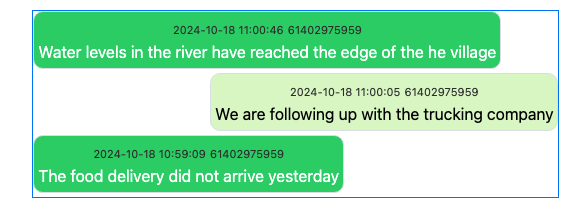
A conversation with a message that needs moving to its own case
Add a comment (optional) - This will be included in the notes of the new case to explain why it was separated
Confirm - Click to move the message, or cancel if you change your mind
The message will be removed from the current case and placed in a new case of its own. This keeps conversations organized by topic.