Data Protection (GDPR)
Note
The features on this page require server version 26.05 or later.
Overview
Smap acts as a Data Processor on behalf of the organisation, which is the Data Controller. The Data Controller owns responsibility for responding to Data Subject requests, notifying regulators of breaches, and defining retention policies. Smap provides the tools to execute those obligations.
Access to the data protection tools requires the Data Protection Officer security group. From SmapServer v26.10 no other security group gives access, including Analyst. The group can be granted by a security manager, an organisational administrator, an enterprise administrator or the server owner, but not by an ordinary administrator.
The Data Subject Access Request and Right to be Forgotten tools search every survey in the Data Protection Officer's organisation, whether or not they are a member of the survey's project or hold its roles, so that nothing held about a person is missed. Every search, export and redaction is recorded in the Logs.
PII Question Flags
Questions in a survey can be marked to indicate whether they contain personal data. Each question can be set to one of three states:
Not Personal Data — default; no special handling
Personal Data — flagged as PII; included in DSAR exports and RTBF searches
Anonymise on Submit — value is SHA-256 hashed client-side (in WebForms and FieldTask) before transmission; the server never receives the plain-text value
Setting PII flags
In the Online Editor, set the property to be edited to PII (Personal Data) using the properties menu, which shows the property currently selected (by default Question Text). Each question then shows three buttons: Not Personal Data, Personal Data and Anonymise on Submit. Select one for each question and save the survey.
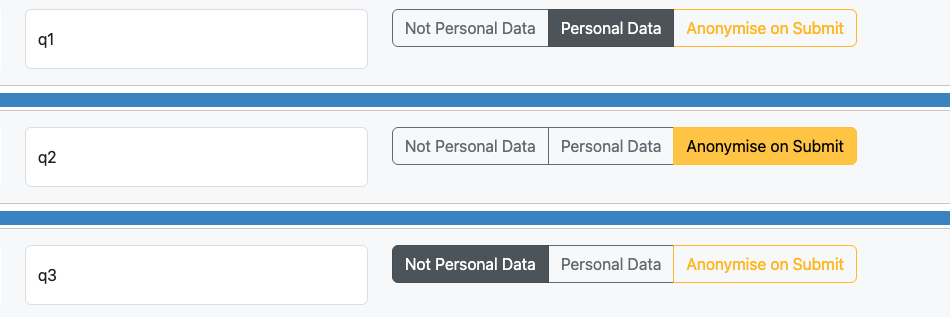
Setting the PII flag in the online editor
In XLSForm, add a pii column to the survey sheet and set values to pii or
anonymise (leave blank for not personal data).
Effect on email notifications
Fields marked as Personal Data or Anonymise are automatically suppressed from notification email bodies. The notification is still sent but the PII field values are omitted, satisfying requirements to keep personal data out of email bodies.
Data Subject Access Request (DSAR)
A DSAR export produces a single XLSX file containing all records that match a given identifier value across every survey in the organisation.
Accessing the DSAR tool
The DSAR tool is on the Privacy page. Select the Modules menu and then Privacy. The menu entry is shown to users with the Data Protection Officer security group.
Running a DSAR
Enter the identifier value (e.g. a name, ID number, or email address).
Optionally tick Partial match to find records where the identifier appears as a substring.
Click Export.
The downloaded XLSX contains one sheet per survey/form. Each sheet includes:
Project, Survey, Form, Status columns followed by all PII-flagged columns
Status is colour-coded: green = Live record, yellow = Edit history, coral = Deleted record
PII column headers are bold and highlighted; PII data cells are highlighted
The export includes active records, edit-history rows, and soft-deleted records so that the full data held for an individual is disclosed.
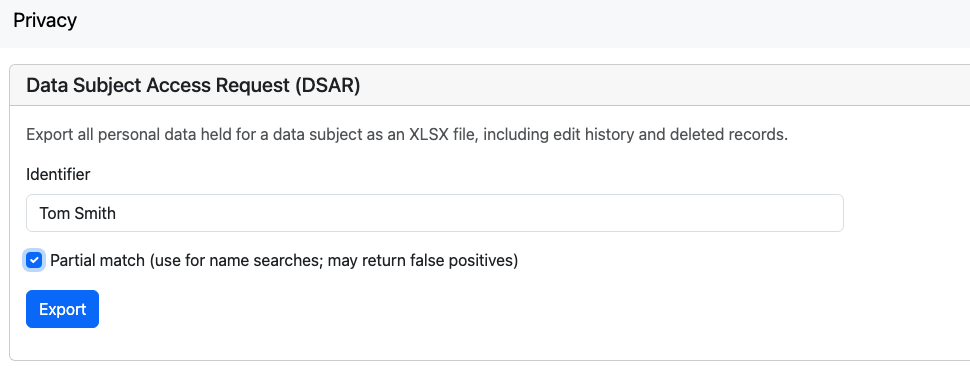
Requesting a DSAR
Right to be Forgotten
The Right to be Forgotten (RTBF) workflow allows a DPO to search for an individual's
records and selectively redact PII fields. Redaction replaces field values with
[REDACTED]. Non-PII data is preserved for statistical integrity.
RTBF is a two-phase process — search first, then confirm — to prevent accidental or over-broad redaction.
Phase 1 — Search
Open the Privacy page from the Modules menu.
Enter the identifier to search for. Tick Partial match if needed.
Click Search. PII questions that the user has access to are then searched.
Results are displayed in a table with columns for Project, Survey, Form, Status (Live / History / Deleted), and the matching field values. Each row has a checkbox selected by default. Deselect any rows that are false positives before proceeding.
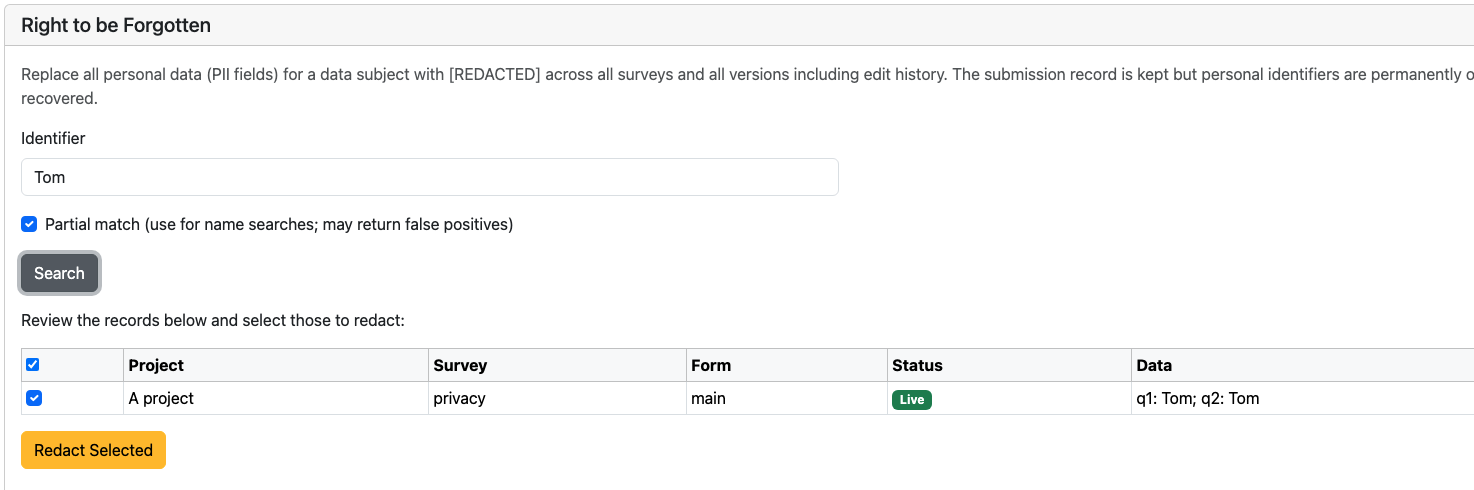
Completed RBTF Search, ready to redact
Phase 2 — Redact
Review the results and deselect any false positives using the row checkboxes.
Click Redact Selected.
Only the checked rows are redacted. Redaction cascades to any child (repeat) forms linked to the selected parent records. All redaction actions are audit-logged at the organisation level.
This final step will be disabled unless the option to enable redactions is set in the Other Options tab of the settings page.
Data Retention
Note
Automated retention and purge is not yet available. Records can be deleted manually using the Deleting and Restoring Data tools. Configurable retention policies with automatic purging are planned for a future release.